
Assess Online Vulnerabilities with Wi-Fi Security Checklist
You’ve made an excellent decision by coming here. Let’s have a look at your Wi-Fi Security:
Wi-Fi Security Checklist
- Do you have a secure password protecting your Wi-Fi network?
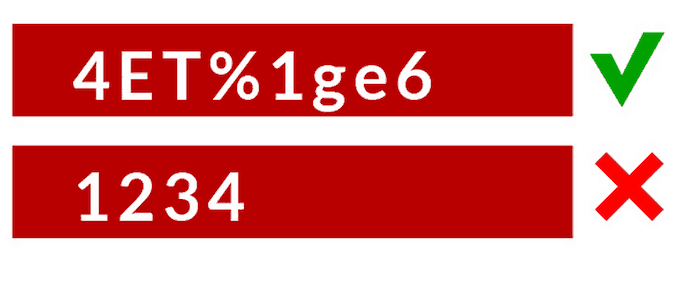
Irrespective of what your password is, ideally it’s always good to pick a strong, nonspecific password. For example:

- Do you use unique passwords for every online account?
Don’t use the same password for each of your online accounts. While it might be easy to remember the same password, it becomes easier for the hacker to comprise your other accounts too.
Advice: Use different/unique passwords for each of your online accounts.
- Do you update your passwords frequently with a strong alphanumeric?
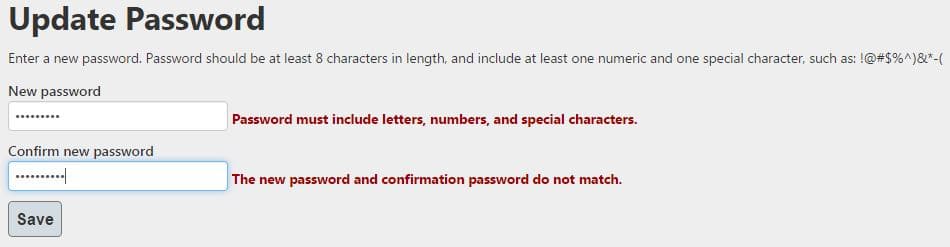
Habitually update your online passwords to ensure that your password is not compromised. For example: Using alphabets and numbers to strengthen your password.

- Do you have two-factor authentication enabled on your online accounts?
Two-factor authentication is a blessing. Make sure you’re using it on all accounts that support this functionality as it keeps evildoers away from your accounts. This is how it works:

Now ask yourself: Is my Wi-Fi network secure?
If the answer to that is no, then you’ve got to implement all measures to secure your Wi-Fi network or you could just setup a VPN on your router.
- Do you have a VPN configured on your router?
A VPN provides encryption and all the necessary protocols for securing your online activities such as the passwords with which you login, files you share, communications sent and received along with the ability to get unlimited access to websites and content of your choice.


Browser Security Checklist
- Do you browse websites with HTTPS enabled?
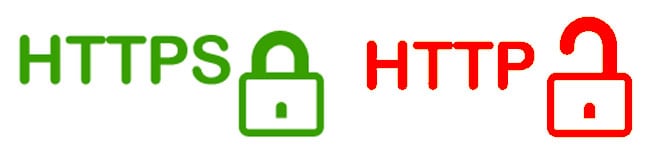
HTTPS ensures that your connection to the website is entirely secure. Any and all information you send or receive via HTTPS is protected.
To check if HTTPS is enabled, you’ll get a green lock on the address bar. If HTTPS is not enabled, you’ll see a red signal on the address bar.

- Do you log out of my online accounts?
If you browse the web on a computer that is shared with multiple other users, then it’s highly advised that you log out of your online accounts so that others don’t mingle with your account.
Advice: It’s a healthy habit to log out of your online accounts to avoid any trouble.
- Do you know about online fraud?
Fraudsters are continually targeting you online with phishing scams, malware and other malicious patches which is why it’s essential to not click on malicious links.
Advice: Don’t click on suspicious links, pictures, etc.

Home Network Security Checklist
- Is your software up to date?
Software updates are packed with essential patches that improve the security and performance of your device. Make sure you keep your devices and home network firmware up to date.
Advice: Frequently check for firmware updates on all your devices connected to the Wi-Fi network.


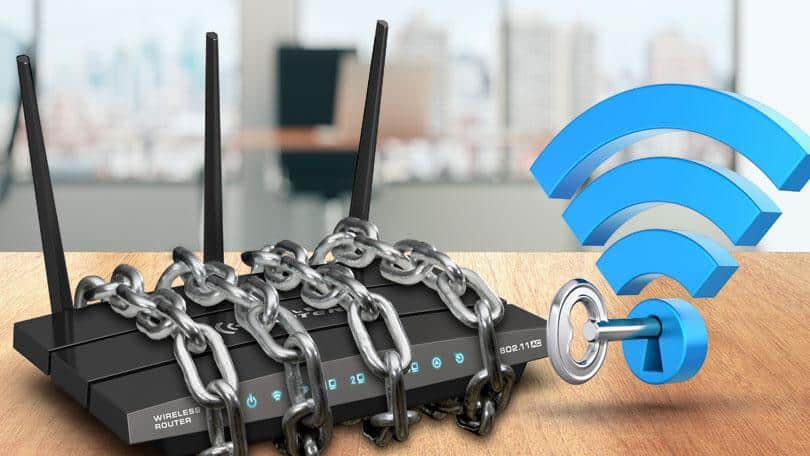
- Have you put security on your router?
If your router is running default settings, then you must rush to enable a WPA password before having your router’s security compromised.

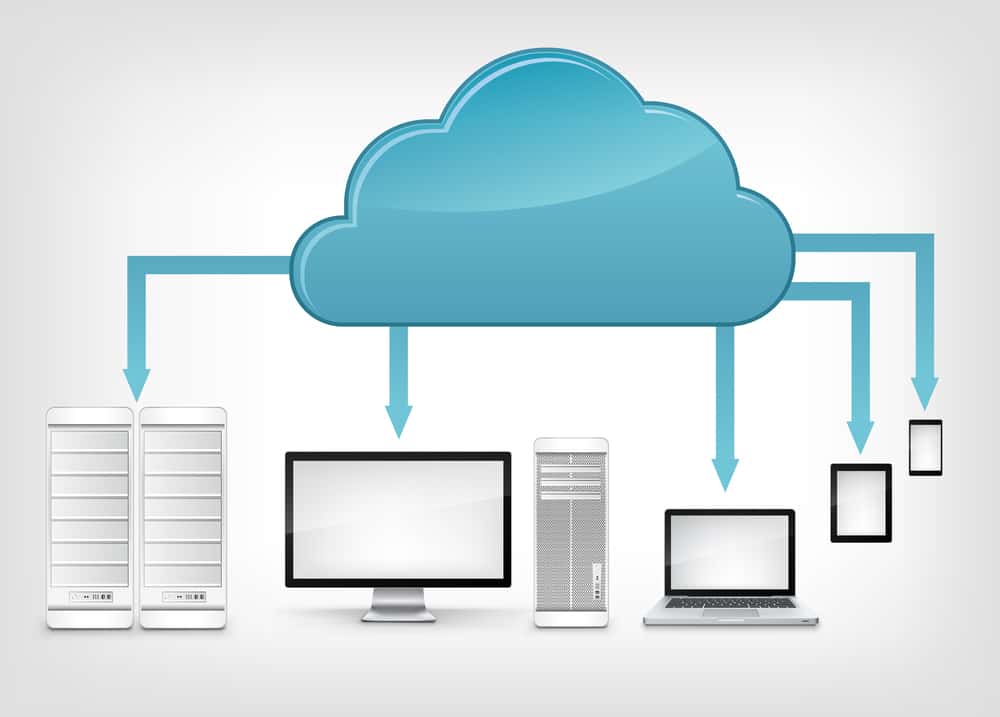
- Do you backup your photos and documents?
For how long will you rely on your devices’ hard drive to store all your photos and documents? Back up your data through a secure home network protected with a password.

- Have you set apps to download automatically?
It’s good to have updates installed but some apps and downloads running in the background may contain malicious codes that could disrupt your system. It’s advised to update manually.
Advice: Be sure to scan each download file through a virus scanner.
Café Security Checklist
Internet cafes can be useful but also present security risks like virus infection and the possibility of others spying on your online activities. Here are some pointers you should ask yourself before connecting to the Wi-Fi in a café:
- Is the café well-recommended or regarded as shady?
Most cafés are lurking with cybercriminals with evil intentions who are continually sipping on coffee and working on ways to hack your private details like credit card information, passwords, pics, etc.
Advice: If you want to connect to the café’s network, walk up to the café employee and confirm if the network you’re connecting to is theirs or not.
- Are the computers updated and equipped with an anti-virus?
It’ll hardly take a few seconds to check if the computer is updated and has an anti-virus installed and defending the device against malicious entities. If it’s clean, then you’re good to go.


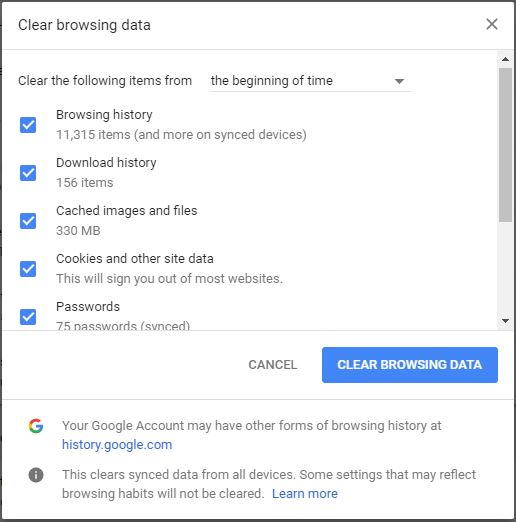
- Did you delete your search history and password?
Once you’re done with browsing, streaming or whatever is that you were doing, make sure you delete your search history and passwords stored on the browser to leave no trails.
Restaurant Wi-Fi Security Checklist
Astonishingly, the first thing we do before ordering food is connect to the restaurant’s Wi-Fi network. Pretty ironic, right? Just when you get connected to the Wi-Fi, be sure to:
- Watch your back
With people sitting around you, it doesn’t take much to figure out what you’re doing on your smartphone, tablet or laptop.


- Turn off file-sharing
Upon successful connection, the first thing you should do is switch off file sharing as to avoid anyone on the same network from accessing your private files.
- Avoid conducting financial transactions
While you may be running late for a bill payment, is worth noting that a small bill payment on an unsecured restaurant Wi-Fi could result in a substantial financial blow when a hacker gets access to your financial information such as your credit card details, banking passwords, etc.
Airport Wi-Fi Security Checklist
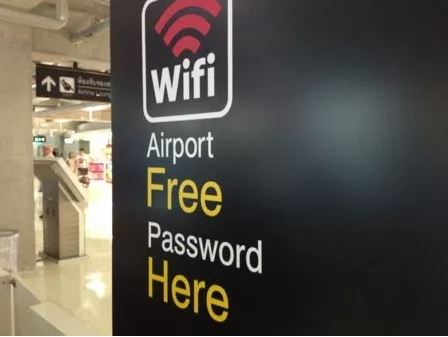
Aren’t we all pumped up when we arrive at the airport heading over for a trip? Well, little do you know, airports are lurking with cybercriminals who are working around the clock to steal as much information as they can through the very Wi-Fi network you connect to.

- Is your Wi-Fi turned on, if yes, then switch it off
Wi-Fi, Bluetooth, and Airdrop are known for transmitting viruses and spyware software. It’s just best to have them switched off when you’re in a crowded zone. This is because there is a high probability of hackers eagerly wanting to eavesdrop on your device.
- Only connect to a legit Wi-Fi network
If you’re in a private business lounge with Wi-Fi access, you would be getting many Wi-Fi networks with an identical name, for example, Delta and Delta 1. While you might think connecting to any one of these networks is harmless, for all you know, there could be a hacker operating the Delta 1 network and a possibility that it’s not a legit network.
Advice: Walk over to the staff and ask them regarding the authentic Wi-Fi network that is being provided by Delta. Make sure it’s got a password protecting it and that you’re connected to a VPN network.

PureVPN

June 20, 2023

3 years ago


