
Table of Contents
1AVStreamer is a compelling and easy-to-use application that can help you broadcast your audio and video content live on the Internet. With 1AVStreamer, you can easily record and stream high-quality audio and video content with just a few clicks. You can also set up automatic recording of your broadcasts, so you never miss a moment.
However, follow our step-by-step guide if you wish to open ports on your router for 1AVStreamer.
Requirements to Port Forward 1AVStreamer
You need to know the following details to open ports on a router at home or work:
- The IP address of your device
- The IP address of your router
- TCP and UDP port numbers of 1AVStreamer
| Learn More: What is Port Forwading? |
Step-by-Step Guide to Open Ports for 1AVStreamer
- On your web browser address bar, type your router’s IP Address.
- Log in with your router’s credentials to view your router’s settings menu.
- Navigate to the port forwarding section of your router.
- Click on Port Forwarding.
- Enter the IP address of your gaming device in your router in the correct box.
- Put TCP and UDP port numbers for 1AVStreamer.
- Click the apply button.
- Restart your router if need be.
1AVStreamer Ports Needed to Run
| TCP: | 80, 8070 |
| UDP: | 80, 8070 |
Quickly and Safely Open Ports on a Router
Now you can port forward multiple ports via PureVPN without technical issues.
What if Your ISP Performs CGNAT?
Most ISPs perform CGNAT (Carrier-Grade NAT) to reduce the cost of buying and assigning new IP addresses. CGNAT allows ISPs to assign a single IP address to multiple consumers relying on the same network. Your IP, and other IPs on the same network, are at risk of getting blacklisted if you try to open ports behind CGNAT. Port forwarding is risky behind CGNAT even if your router is configured for port forwarding.
How to Open Ports on a Router Behind CGNAT
The easiest way to port forward routers behind CGNAT is to use PureVPN’s Port Forwarding add-on. You can use an anonymous IP address and port forward routers behind CGNAT with the help of our add-on. Here’s how:
- Login to the PureVPN member area.
- Click the subscription tab.
- Click Configure.
- Apply your desired port settings.
- Click Apply settings.
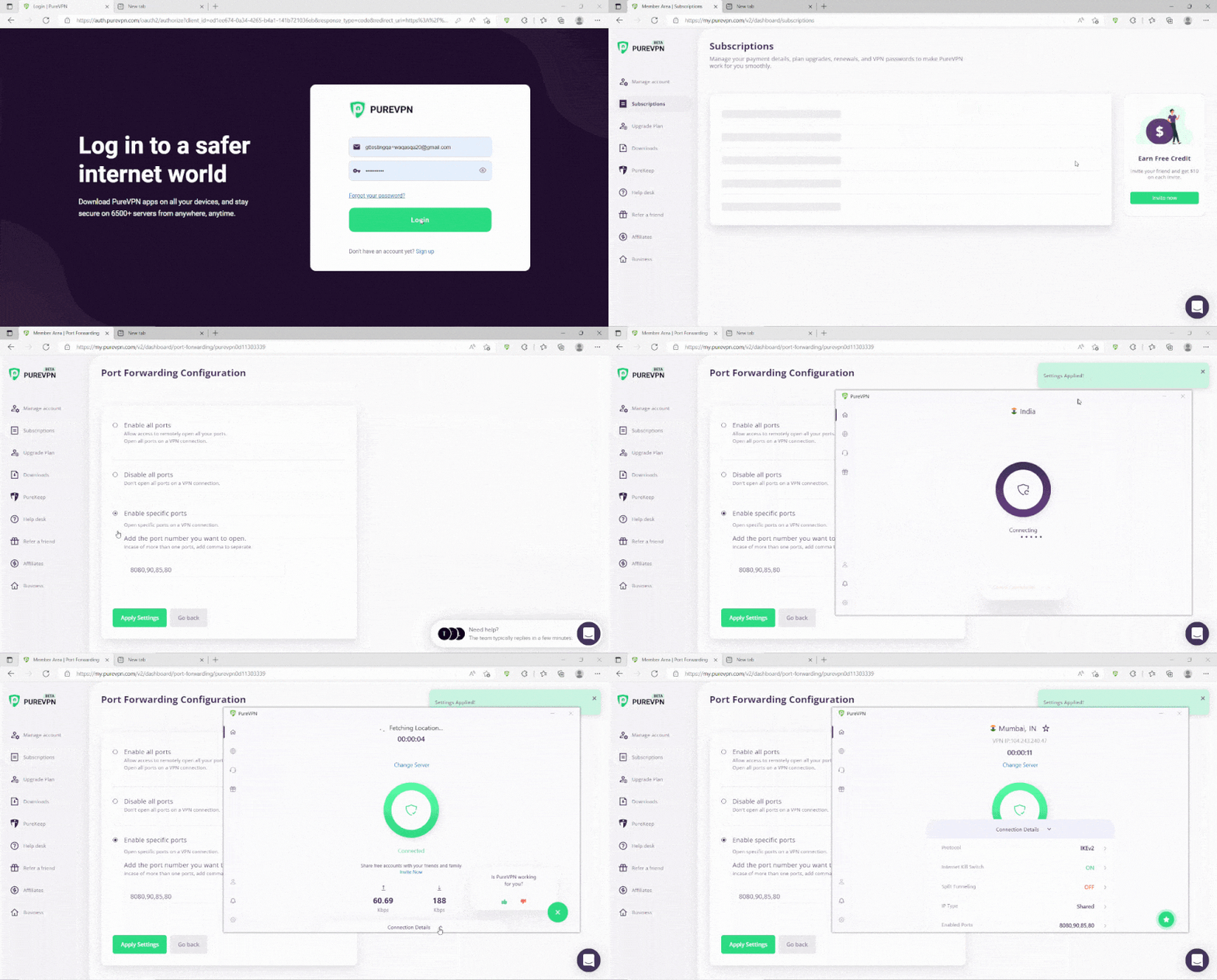
PureVPN’s Port Forwarding Add-on
You can open ports automatically and bypass CGNAT without hassle with a port forwarding add-on. Besides port forwarding, you can use PureVPN to change your IP address, encrypt your internet traffic, and allow you to stay secure on all devices. Here’s what you can do with a PureVPN subscription:
- Access to 6,500 servers in 78+ locations
- Ten simultaneous connections for your entire household
- High-speed VPN connections without data logging
- Robust security and privacy features
Frequently Asked Questions
All you have to do is log in to the router’s setting, choose Advanced, select Advanced Settings, enter the port numbers (TCP and UDP), select the IP address, and you are done. You can follow our comprehensive guide to port forward Netgear routers easily.
Always double-check the port numbers, your router’s IP address, and your device’s IP address before port forwarding routers. However, if you are struggling to open ports, use PureVPN’s port forwarding add-on to open ports automatically.

Ovais Khan

June 20, 2023

3 years ago


