Malware and Adware are ever-present dangerous threats to our privacy. They move on the internet at lightning-fast speed, in several different forms, infecting any device they come across.
One effective way to spread adware and malware is through browser extensions, which people tend to use each day.
It is no secret that there are tons of browser extensions available on the internet, and though they seem very innocent, they are extremely dangerous to the user’s online security and privacy.
The best way protection against infected extensions is to limit their usage. It is recommended that you download only those extensions that come from reputable vendors and are extremely useful.
There are cases however when you find your browser using an extension you never downloaded. Or you may have downloaded and installed an extension, but have since noticed that your browser keeps diverting to ad-filled web pages, or your homepage has automatically changed and now takes you to some company’s website.
In any of the above cases, it is necessary that you remove infected extensions hidden inside your Chrome browser. The following steps would help you out in locating and removing such extensions.
How to Remove Adware from Google Chrome?
- Start Google Chrome and click “Customize and Control Google Chrome”, which is represented by a 3-lines icon located at the top-right corner of the browser.
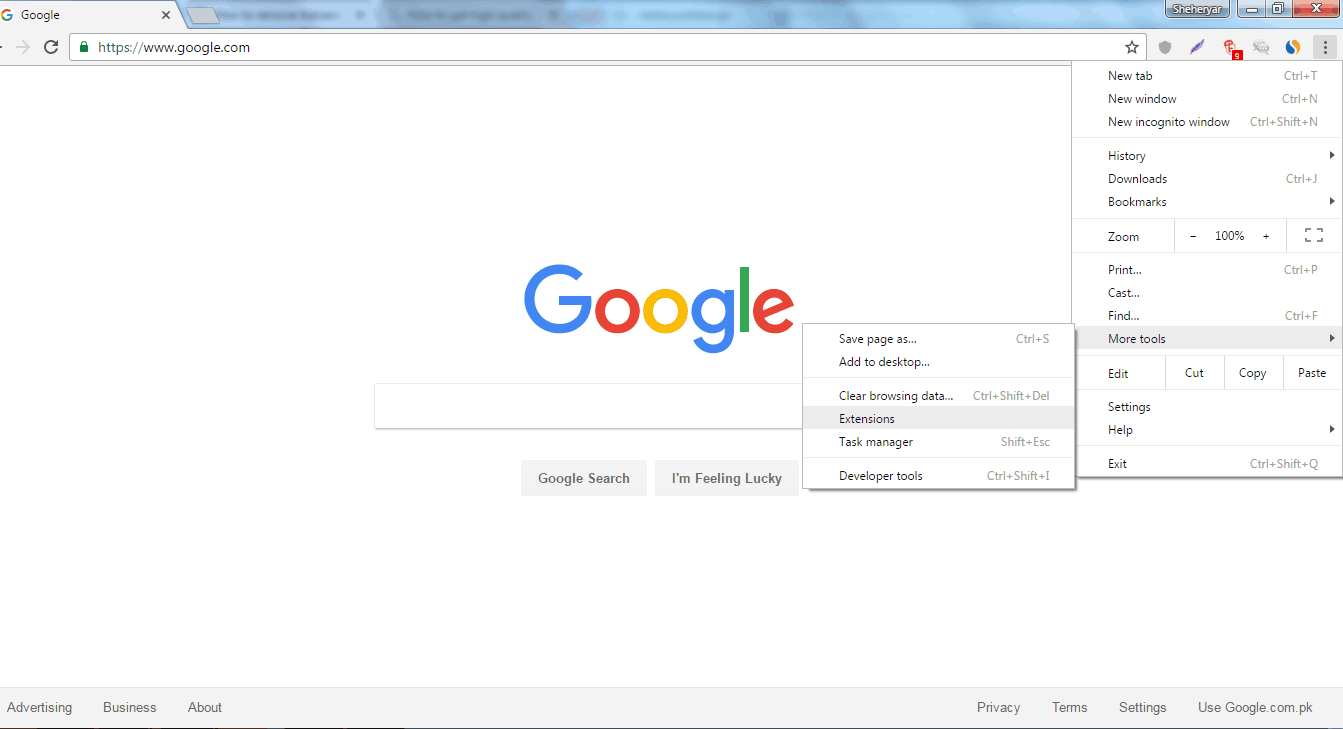
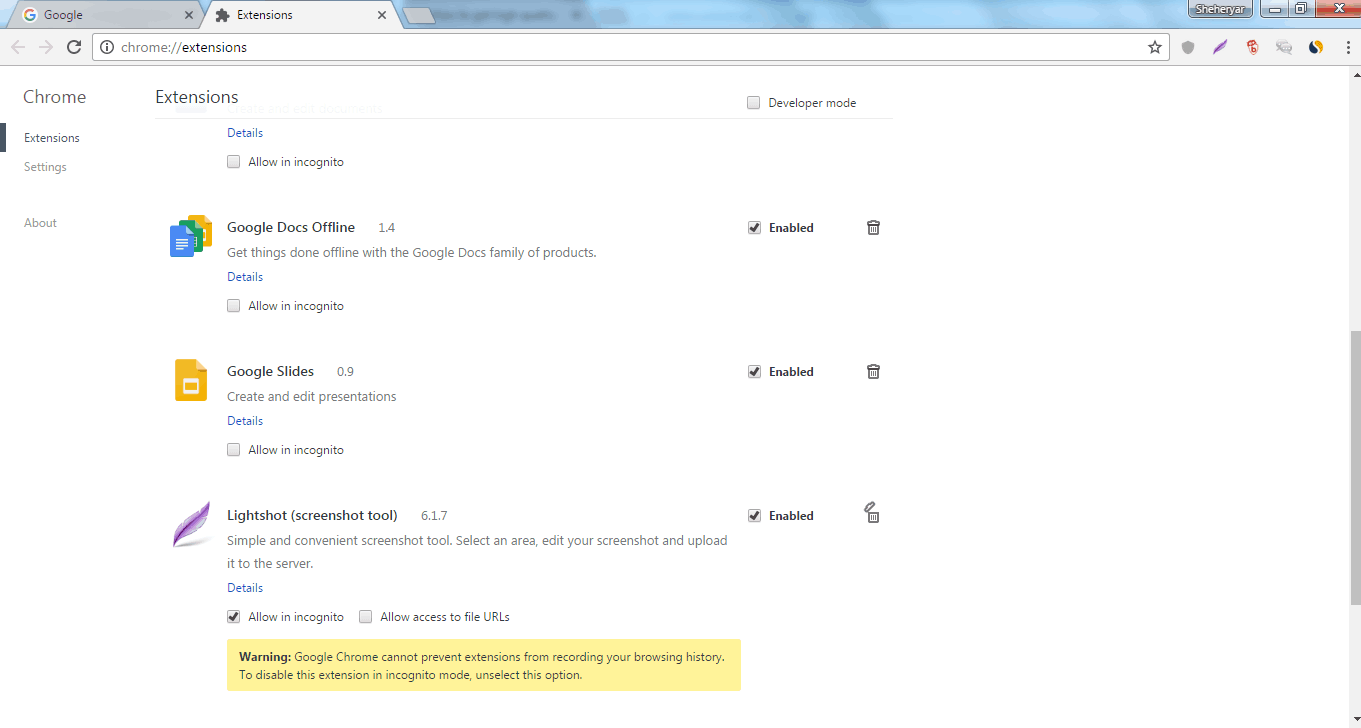
- Now select Tools, then click Extensions. It will open a window showing all the installed extensions and plug-ins in Google Chrome.
- Locate the adware or potentially unwanted program and click the Trash icon to delete the malicious extension.
- On the left side menu, click Settings to display the current configuration of Google Chrome.
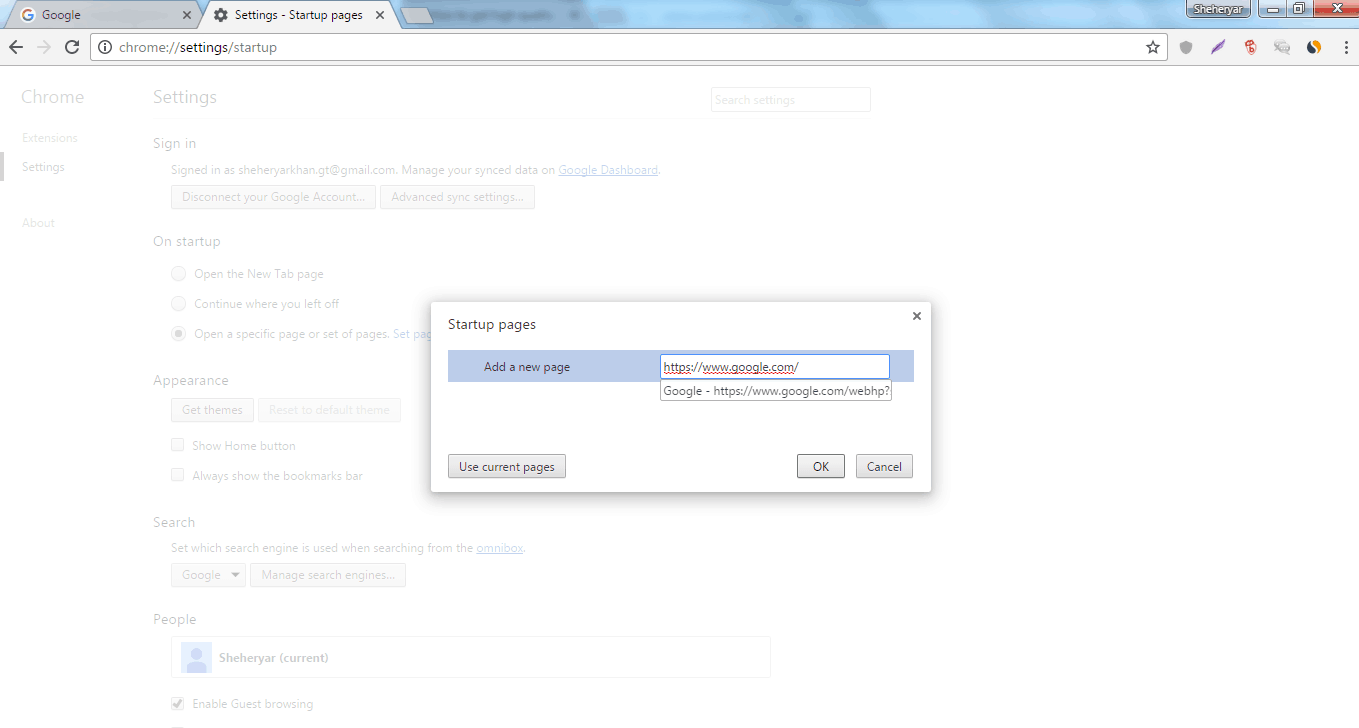
- Scroll down to the ‘On startup’ section with the option ‘Open a specific page or set of pages’ and click Set pages.
- Click the X button to remove the unwanted or hijacked start page from Google Chrome.
- If there is only one startup page and the default start page is removed, you should create a new preferred web address by clicking Add a new page and type http://www.google.com to set Google as your default startup page.
- Next, scroll down to the ‘Appearance’ section.
- Put a Check mark on Show Home Button and click Change.
- Then select the “Use the New Tab page” option. This will disable the new tab option which opens adware web pages. Click OK to save the current settings.
- Next, you need to restore the default search engine. Scroll down to the ‘Search’ section and click on the option titled Manage search engines…
- Select you preferred search settings, and you can remove the unwanted search engines by clicking the X button.
Though the above steps are very helpful in removing adware and malware from Google Chrome, they are pretty basic and they only help you in removing unwanted extensions from your device.
Adware and malware can still enter your device through a variety of different ways. In this case, it is necessary to use services such as PureVPN, Bad Ad Johnny and anti-virus services.
Premium VPN services such as PureVPN block all types of malware from entering your device. They are special equipped with all the weapons necessary to eliminate online threats. Similarly, ad-blocking services like Bad Ad Johnny block all kind of ads and trackers, while also protecting you against dangerous websites having malicious properties and programs.
Adware and malware have proven to be a huge nuisance on the internet. However, if the above steps and services are used properly, they can relieve internet users from the dangerous extensions that might have found their way onto their desktops.

Sheheryar Khan

June 20, 2023

3 years ago