
**Update: A newer, better version of our Kodi app is out! We’ve fixed some bugs & introduced major performance improvements. Please upgrade the existing app to version 1.5.0 (if you haven’t already) from here.**
BBC iPlayer is the most popular on-demand and live streaming service in the UK, where you can watch live TV channels, listen to recorded and live radio broadcasts, catch up on TV shows and programs you missed, as well as view other exclusive content.
Since BBC iPlayer only works in the UK, you will not be able to access and watch it from abroad. Similarly, when you try to watch a TV show with iPlayer WWW – BBC iPlayer’s official Kodi add-on – the following error will pop up.
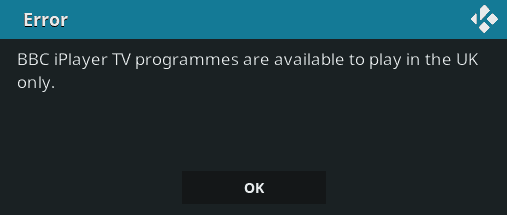
Fret not, though! In this in-depth guide, we will show you exactly how to watch BBC iPlayer on Kodi from anywhere in the world. But before we move on to that, let’s take a closer look at why it’s so important to have a VPN for Kodi.
Why Use a VPN with Kodi?
Numerous Kodi add-ons are geo-restricted, which means they can only be accessed from certain regions. To get around these digital hurdles and watch the content on any Kodi add-on, you will have to spoof your real location.
This is where a Virtual Private Network (VPN) comes into play and allows you to change your virtual location to that of any country in the world so that you can enjoy uninterrupted access to all Kodi add-ons and their content.
PureVPN – The Best Kodi VPN Around!
PureVPN gives unlimited access to 750+ servers in 141+ countries to help you unlock the world of Kodi add-ons. Not only this, you will have 88,000+ IPs to hide your identity behind and bypass all sorts of limitations when using Kodi.
You will also be able to enjoy high-speed streaming on Kodi, courtesy of hundreds of optimized servers for streaming. The best part of all, PureVPN also offers a dedicated add-on for Kodi to make it easier for you to access and watch iPlayer WWW.

Watch this video to install and configure Kodi VPN on your device:
How to Install BBC iPlayer on Kodi?
BBC iPlayer offers a wide range of TV shows, movies, documentaries, news, and sports for your streaming pleasure. However, before you can use the official add-on to watch your favorite British content, you will first have to install it:
1. Open Kodi V17 and select Add-ons from the home screen menu.
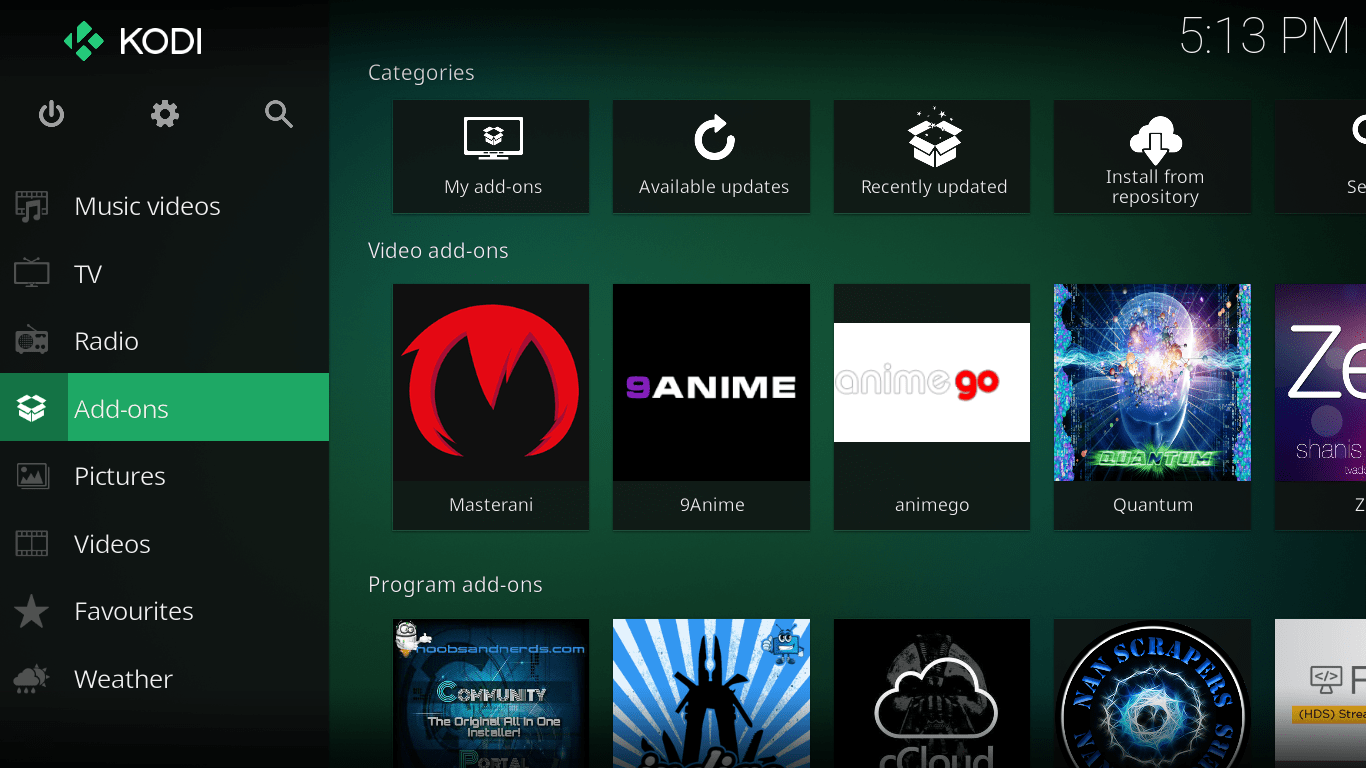
2. Click on the Package symbol on the top left corner.
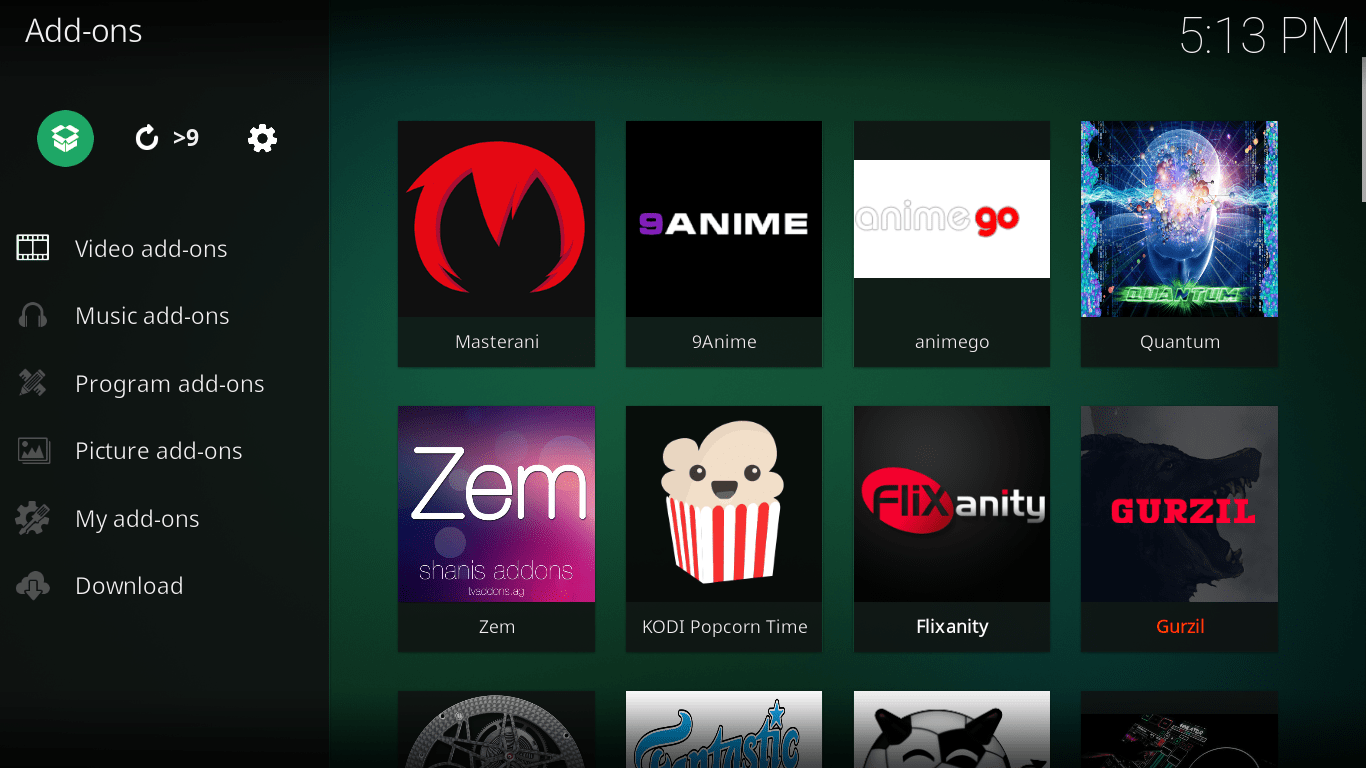
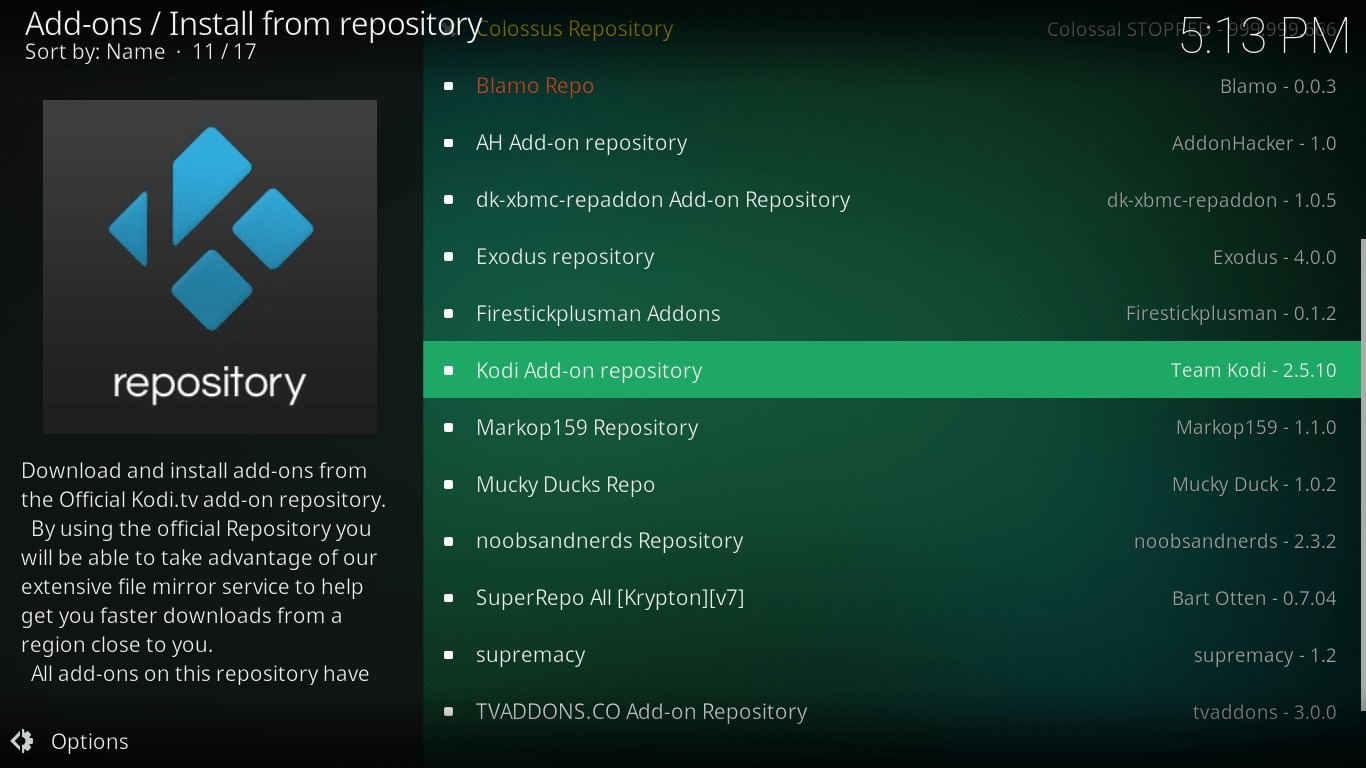
3. Select Install from Repository.
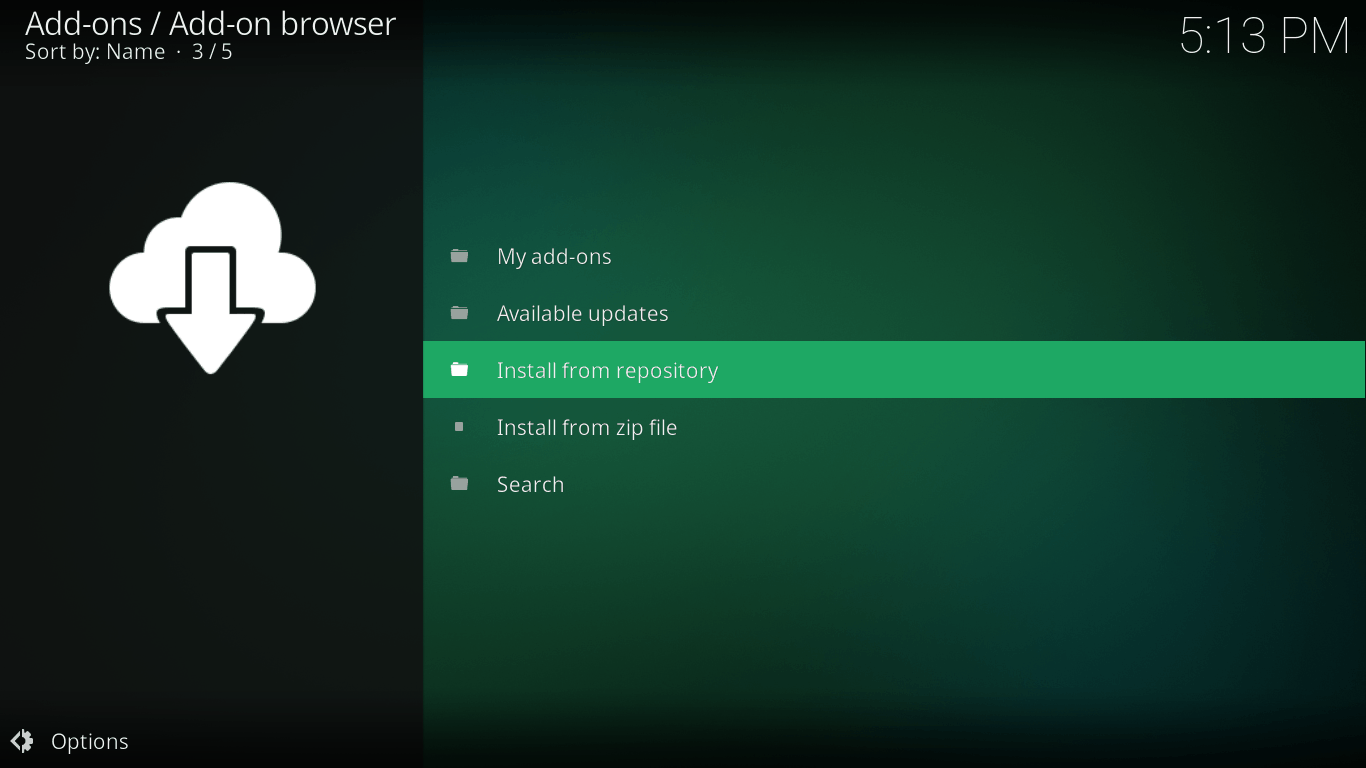
4. From the list, select Kodi Add-on repository.
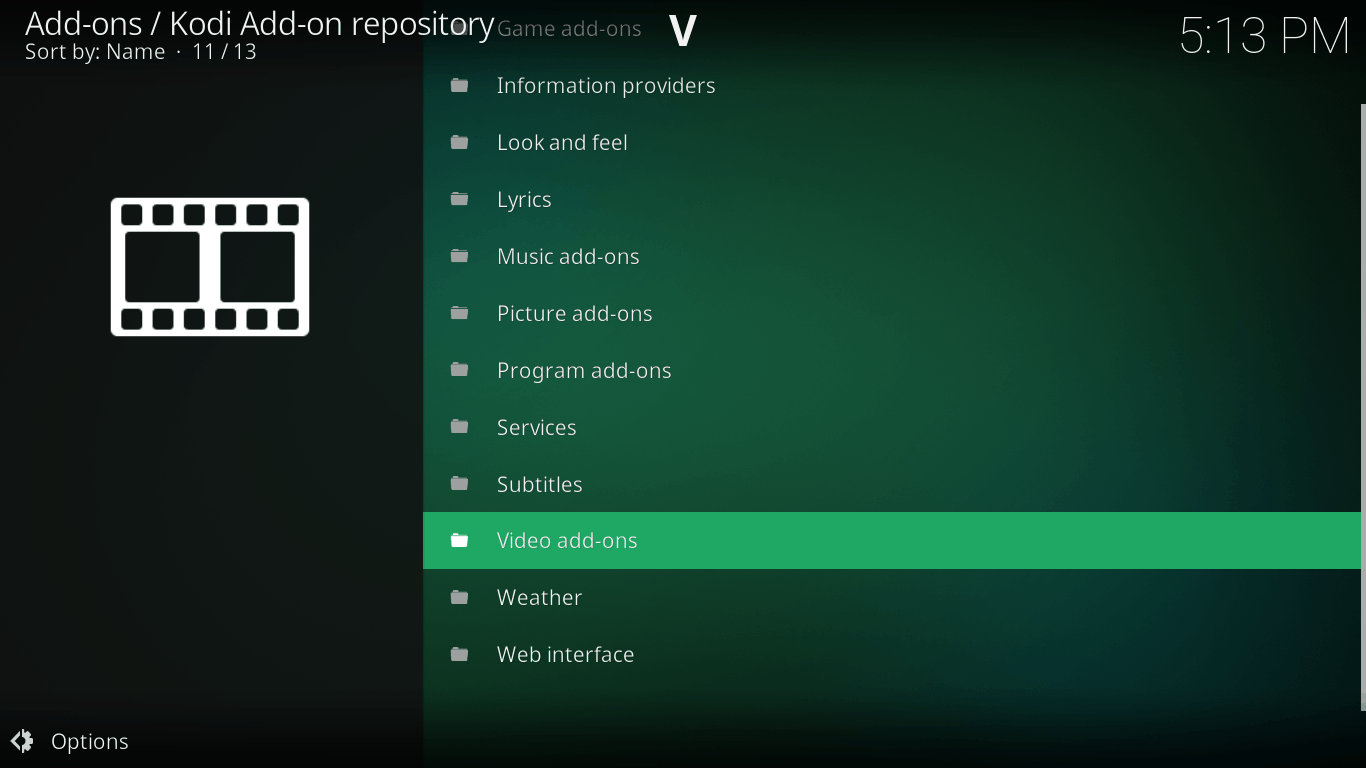
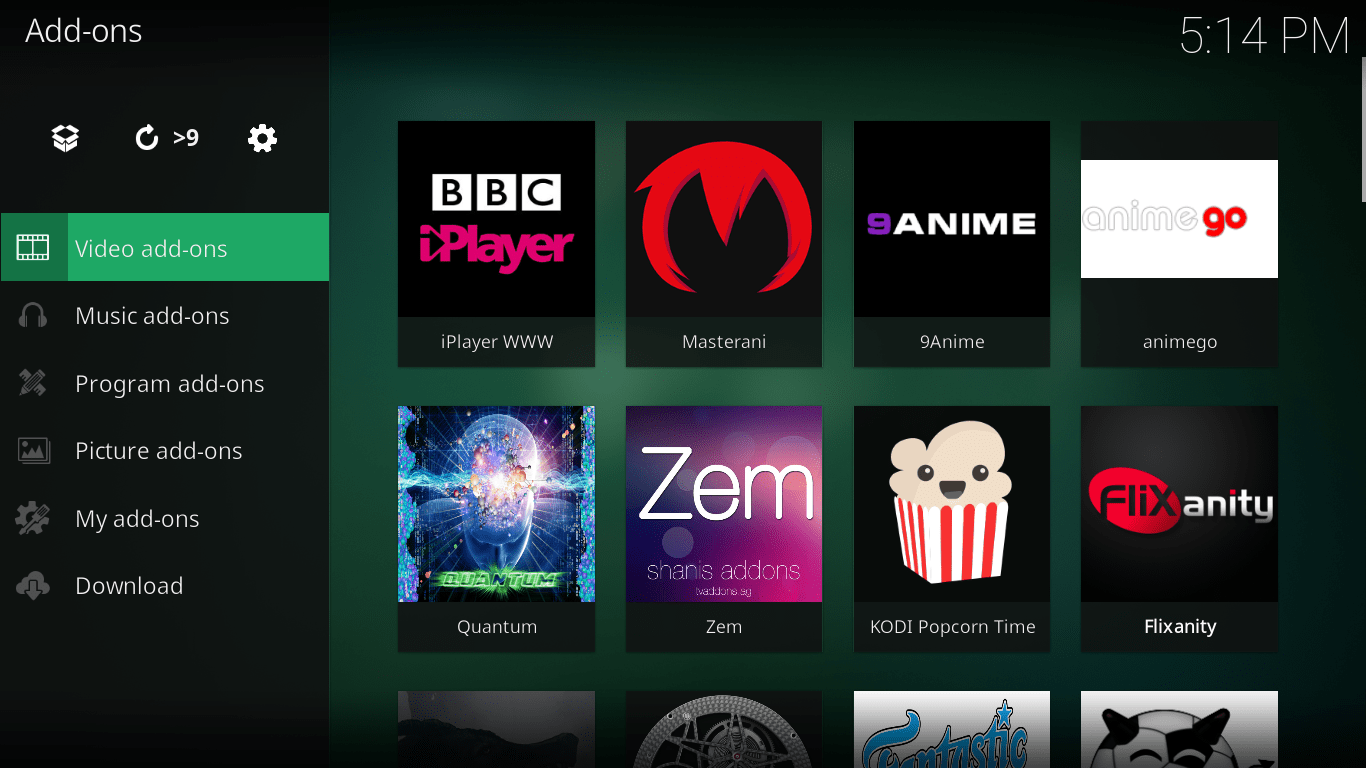
5. Now, select Video add-ons.
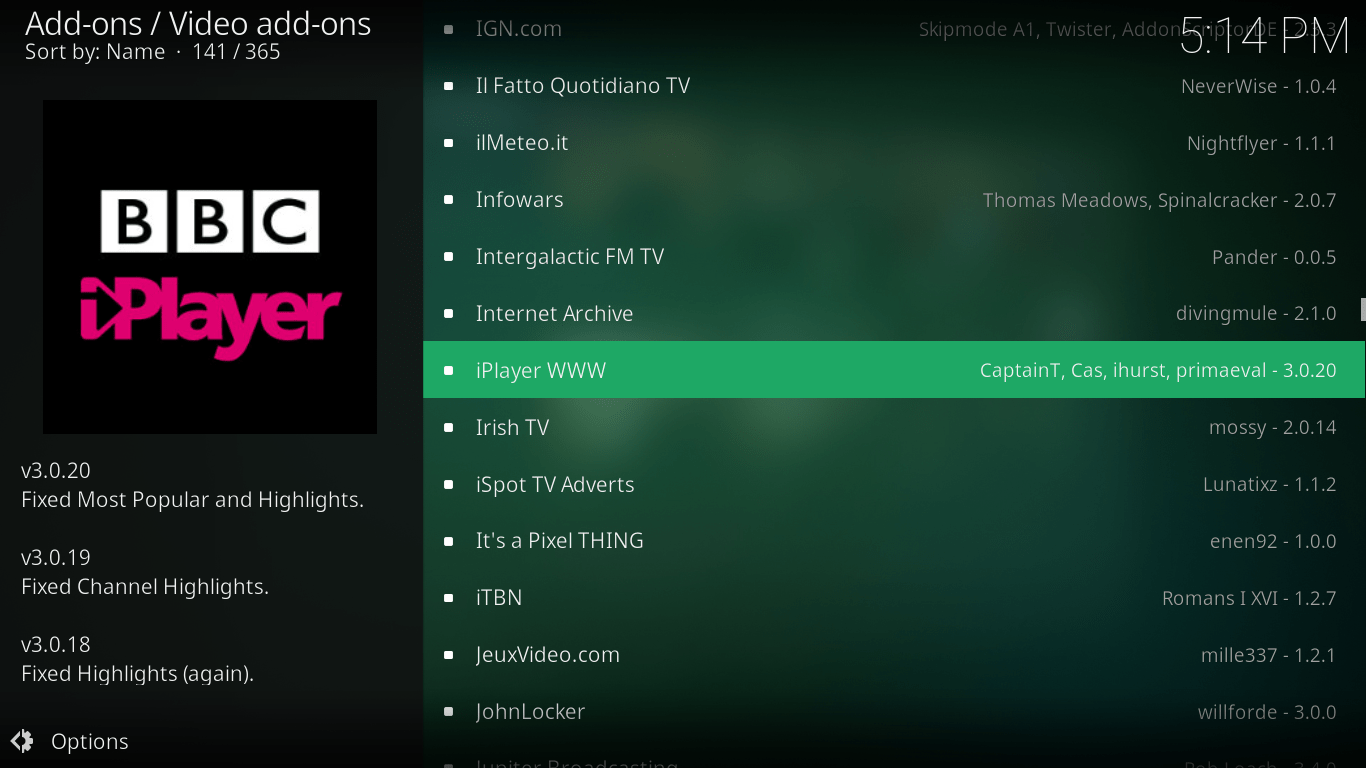
6. Select iPlayer WWW from the list.
7. Select Install at the bottom right.
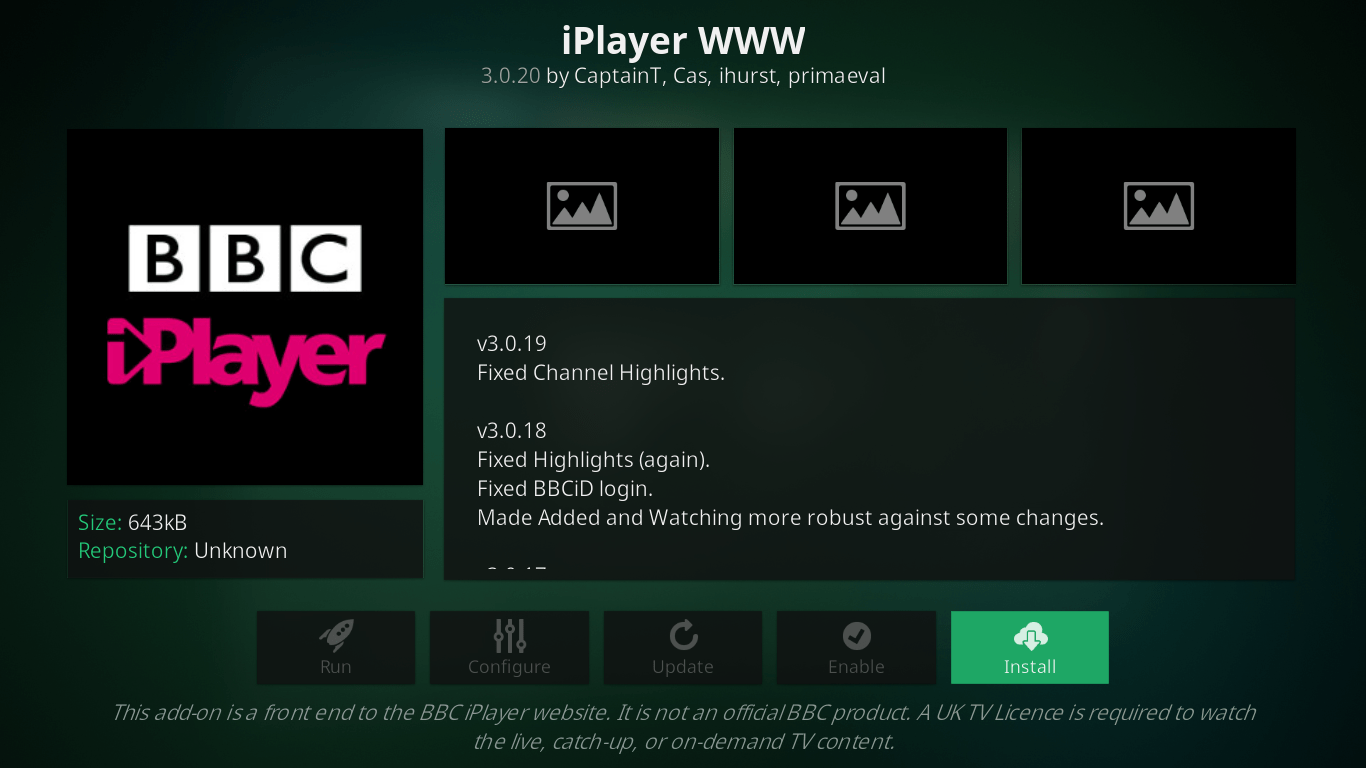
8. Wait for the add-on installed notification.
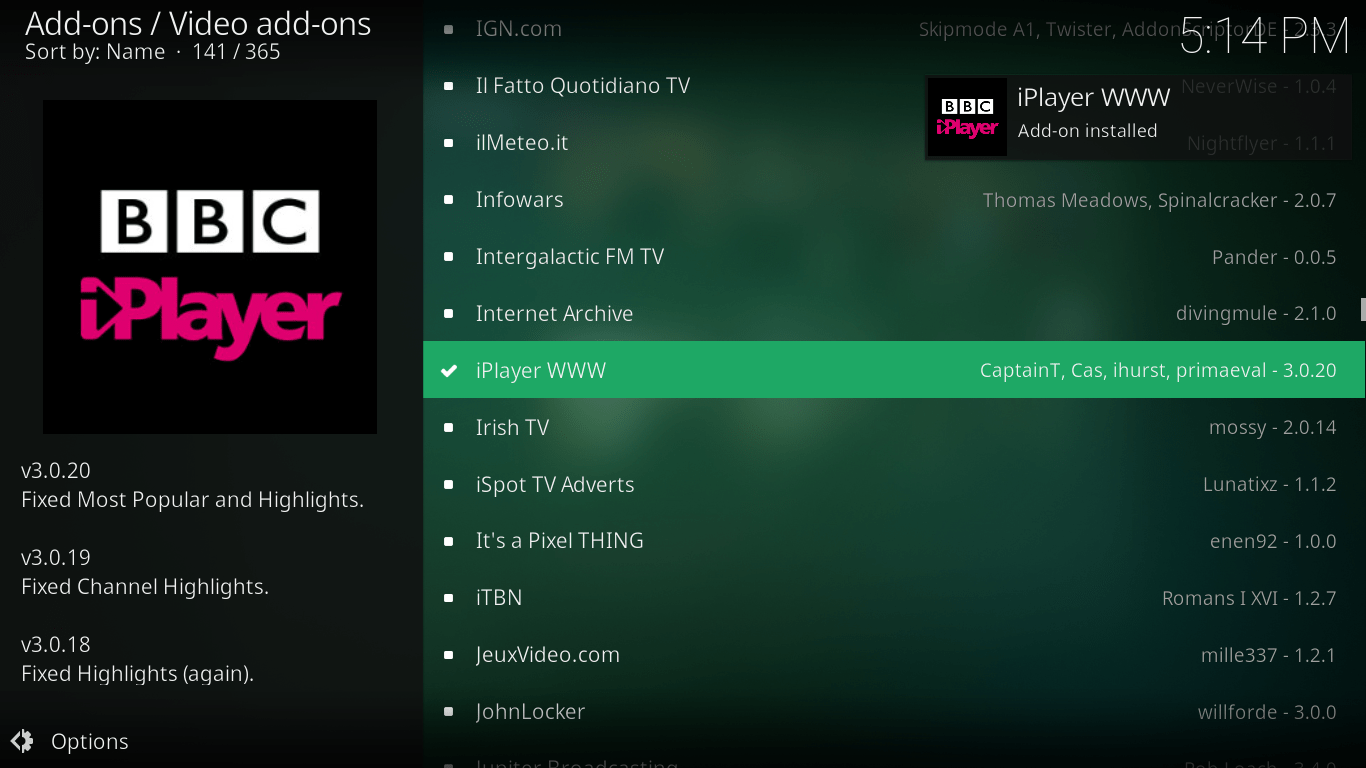
9. Voila! You have successfully installed the iPlayer add-on on your Kodi device.
How to Bypass BBC iPlayer Restriction?
Now that you know how to get BBC iPlayer on Kodi, let’s discuss how to bypass its restrictions with PureVPN. As mentioned earlier, if you try to stream a movie or TV show on iPlayer WWW from abroad, you will get an error message stating that BBC iPlayer can be watched in the UK only.
Well, here’s how to get around this error once and for all:
1. From the home screen menu, select Add-ons.
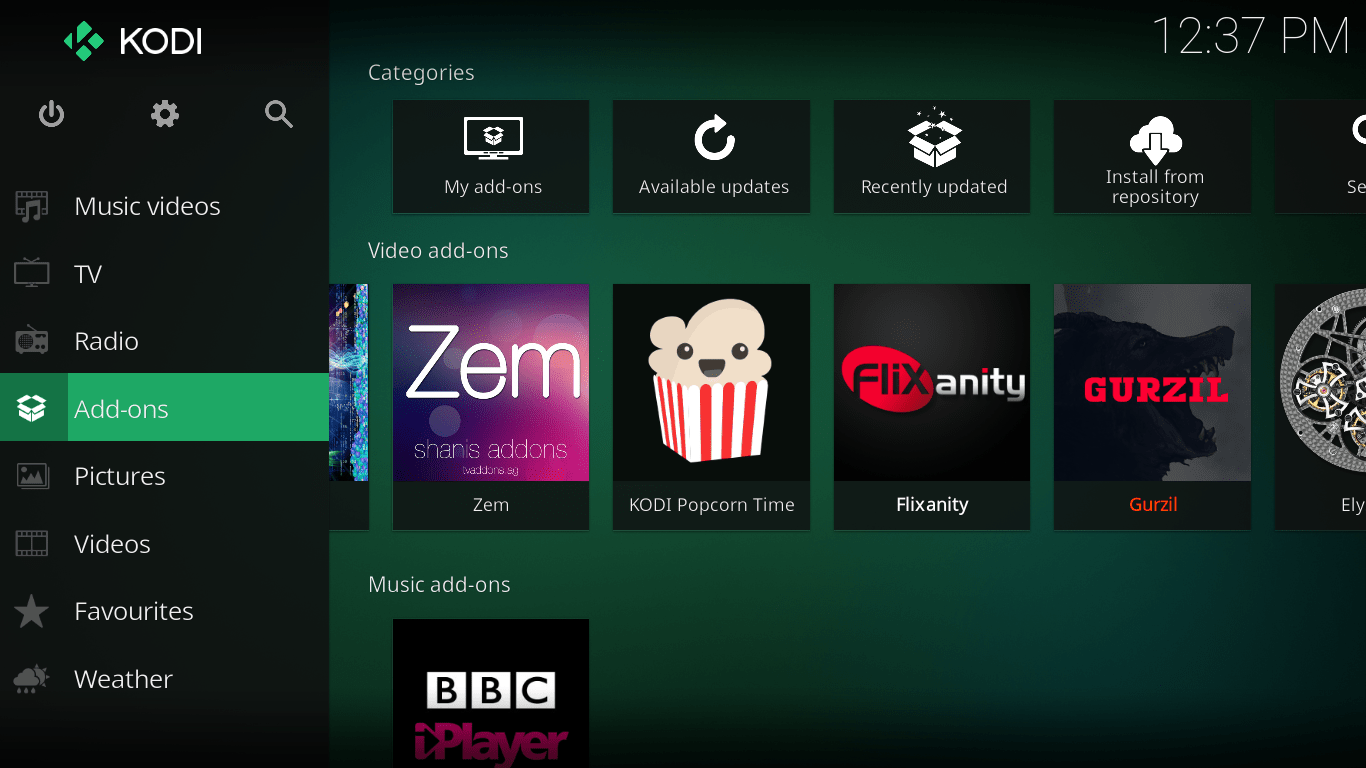
2. Scroll down and select Program Add-ons.
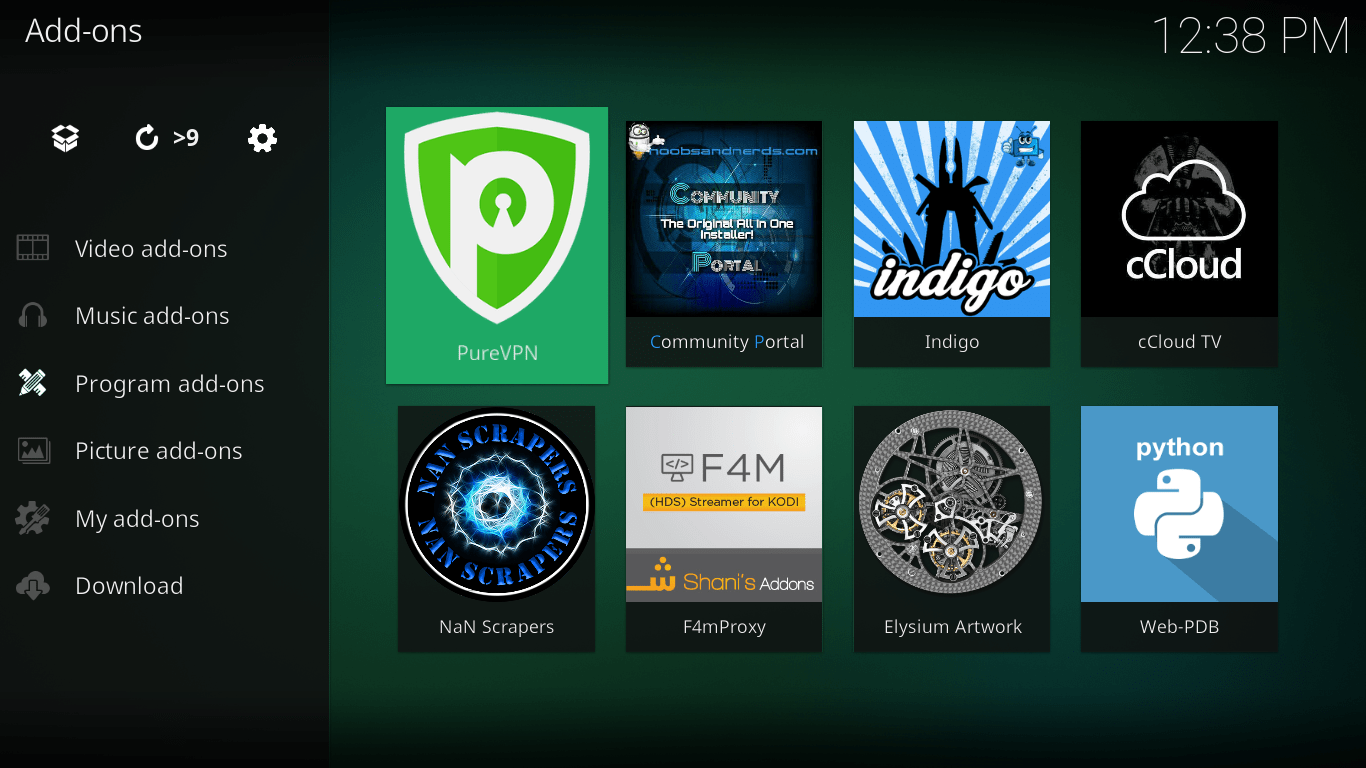
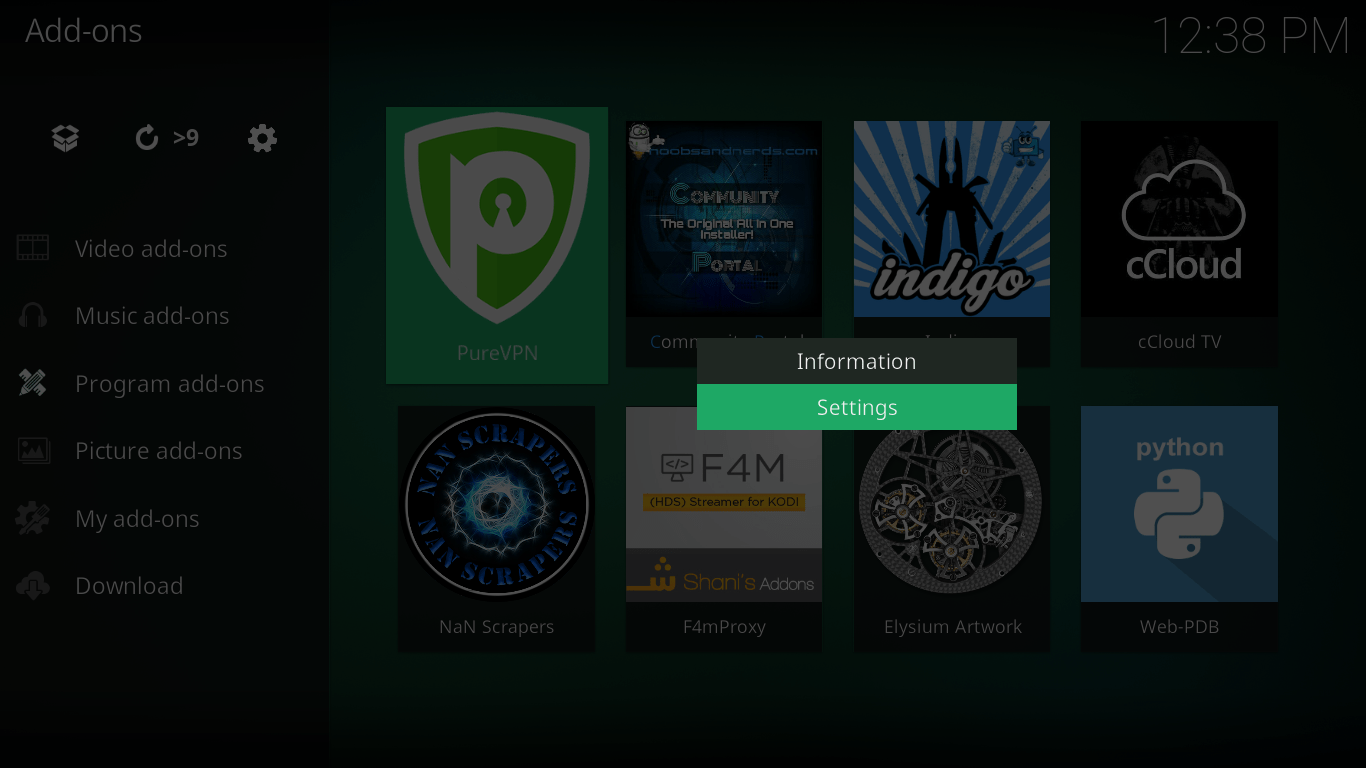
3. Navigate to the PureVPN add-on, hold the enter button down for a few seconds, and then select Settings.
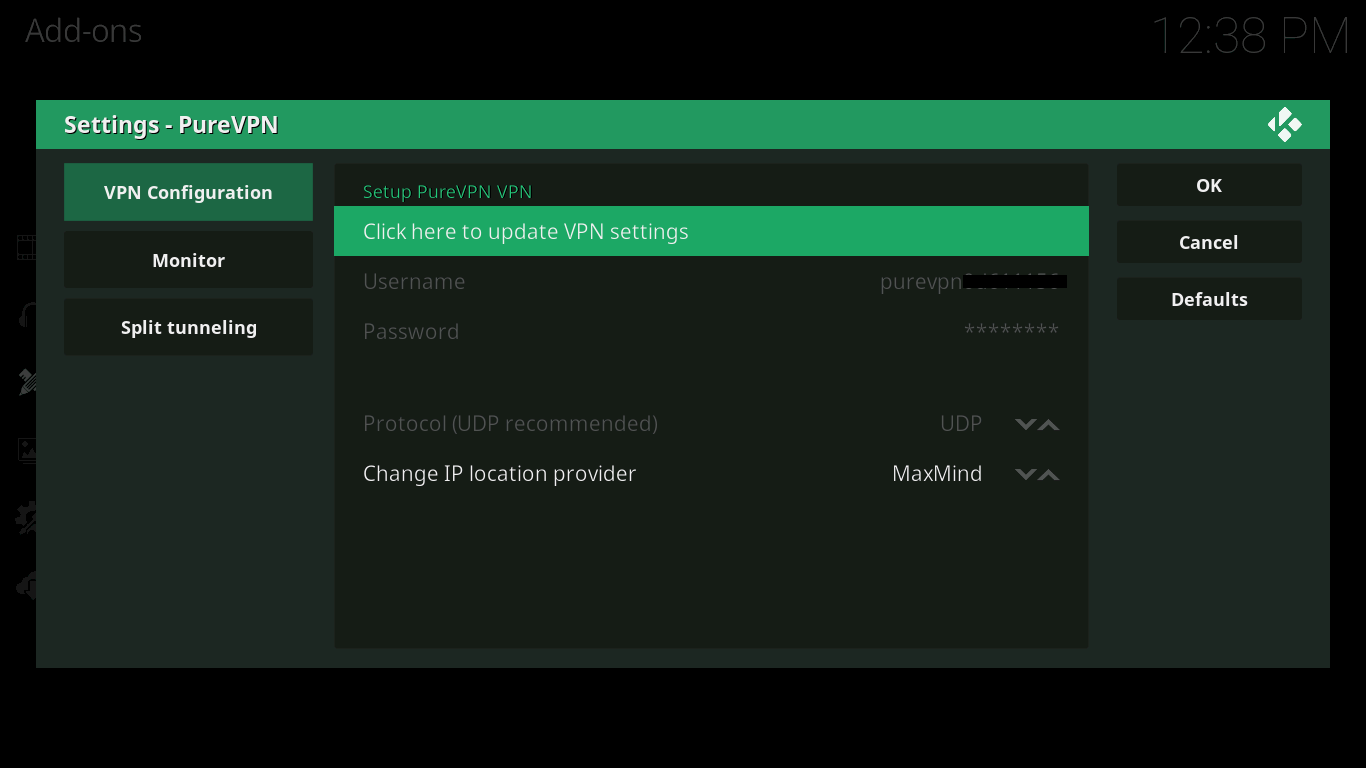
4. After you have entered the Username and Password provided by PureVPN, select Ok and launch the add-on.
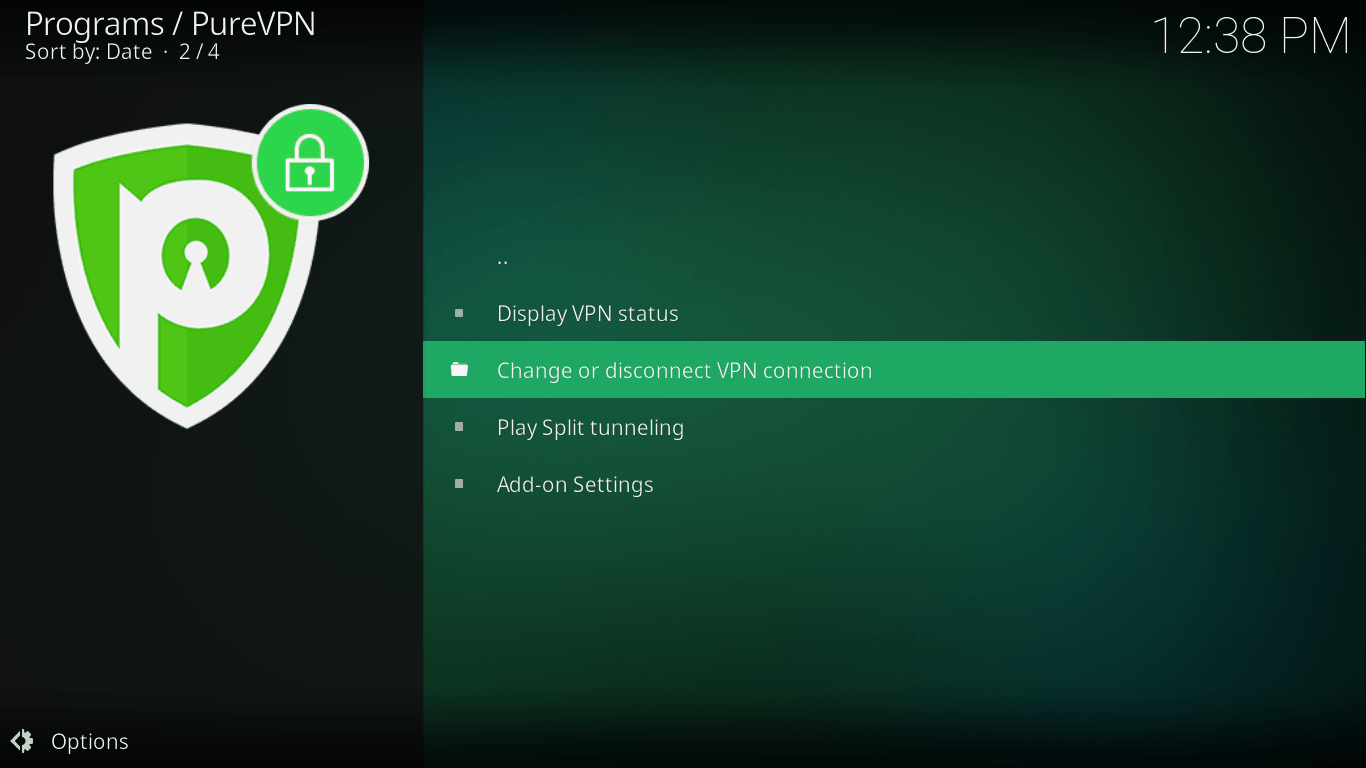
5. Select Change or disconnect VPN connection.
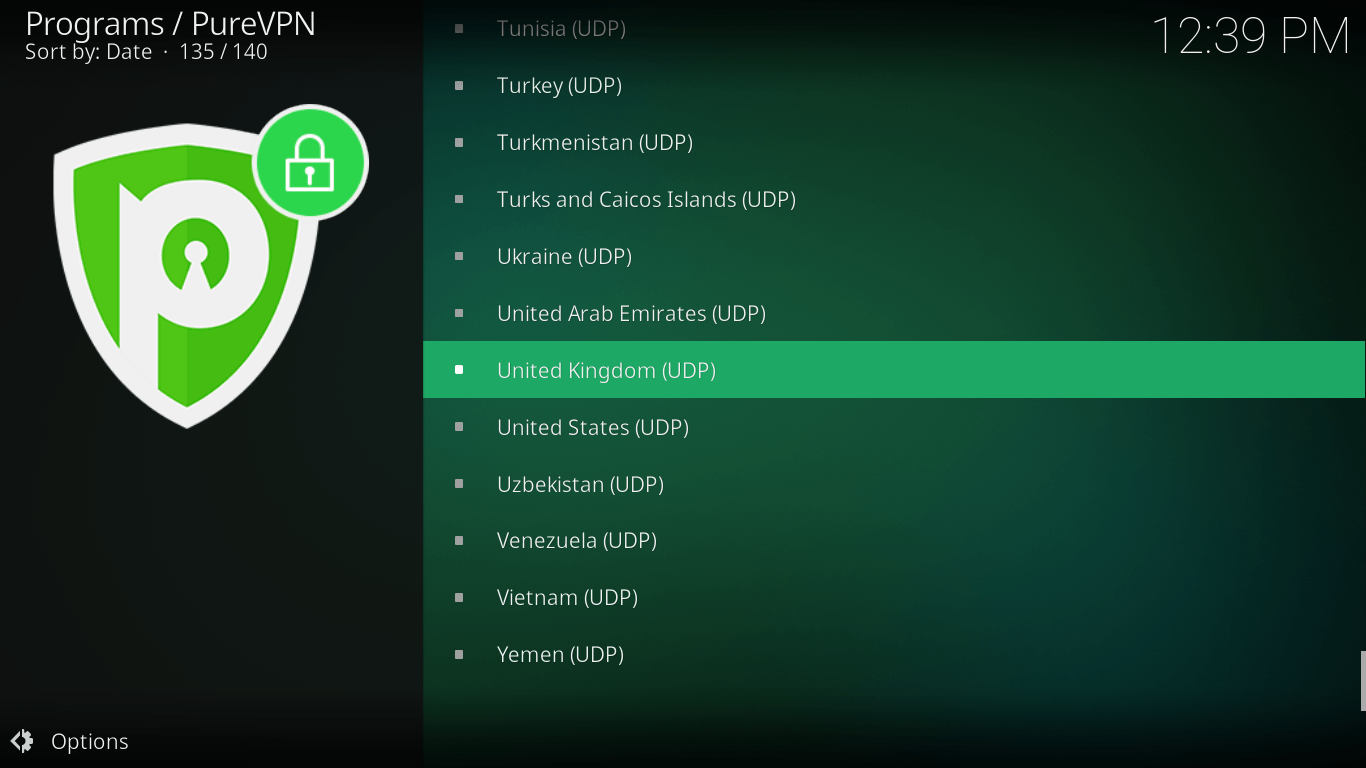
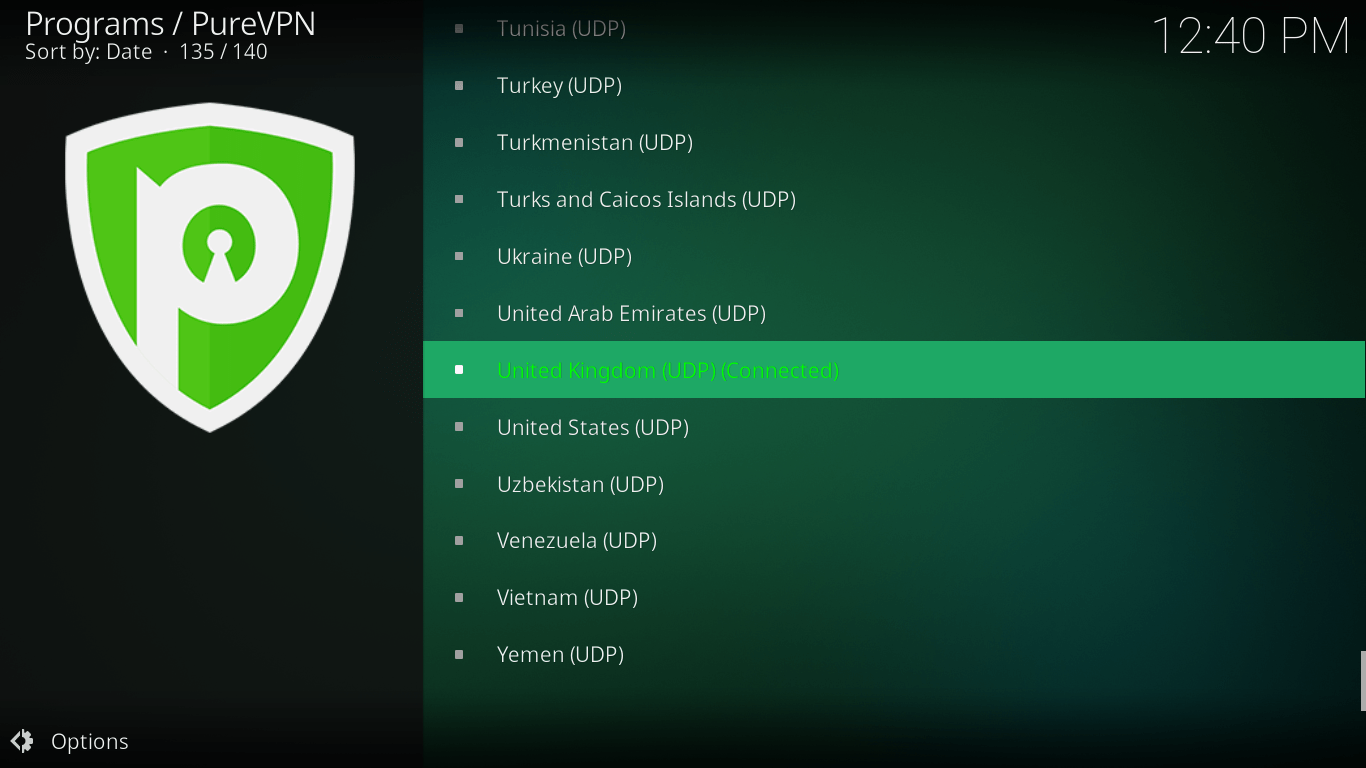
6. Scroll down, and select United Kingdom (UDP).
7. Wait a few seconds for the VPN connection to establish.
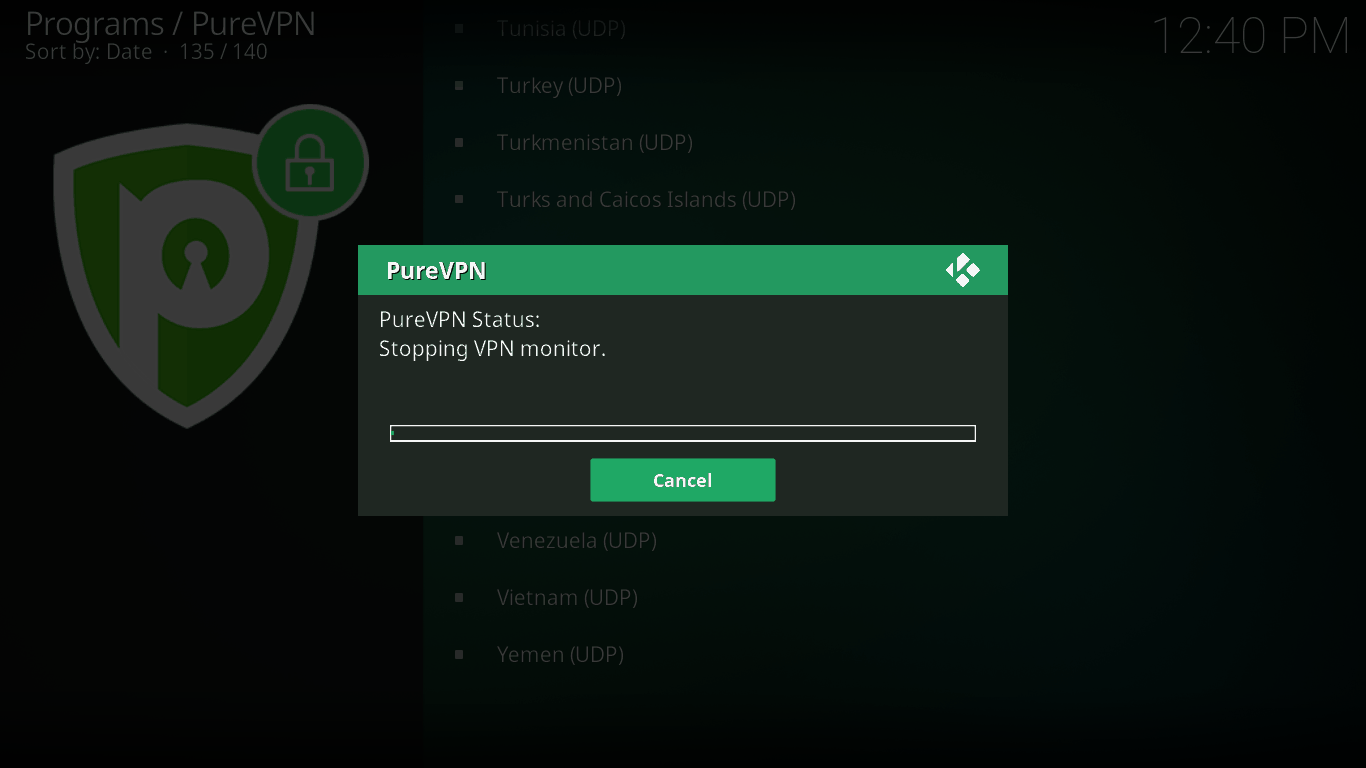
8. Once the connection has established, you can go ahead and enjoy the content you want on iPlayer WWW.
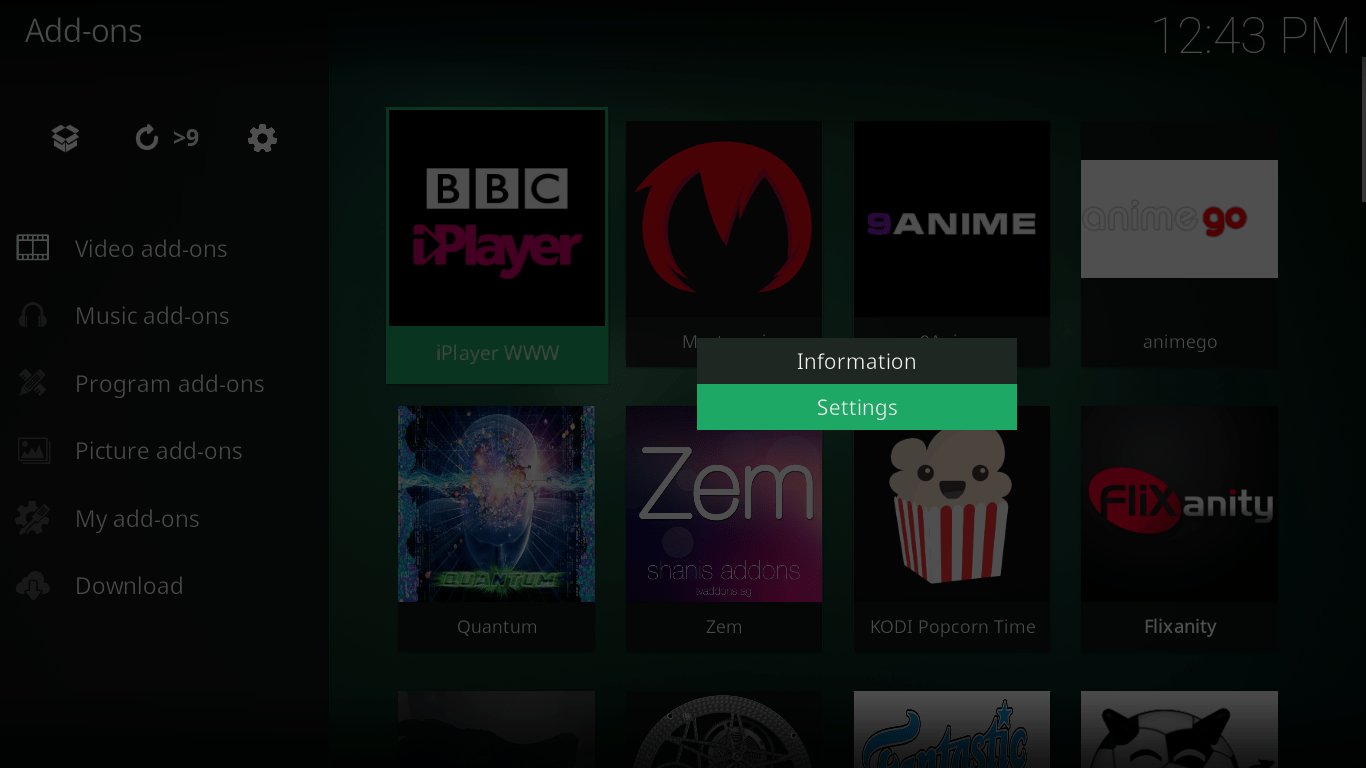
9. Navigate to iPlayer WWW, hold the enter button down for a few seconds, and then select Settings.
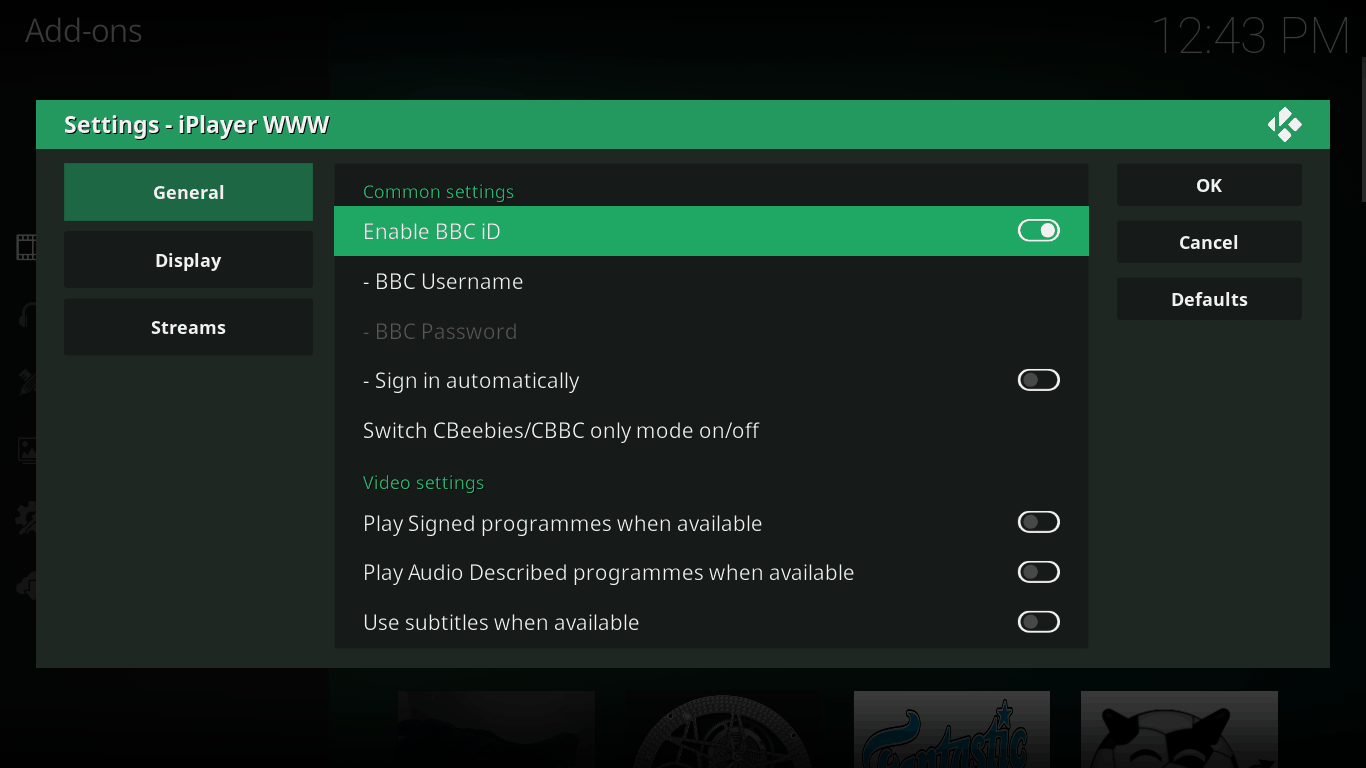
10. Swipe the Enable BBC ID toggle, enter your Username and Password, and select Ok.
11. Once done, launch the iPlayer WWW add-on and enjoy streaming the content you want without any hurdles!
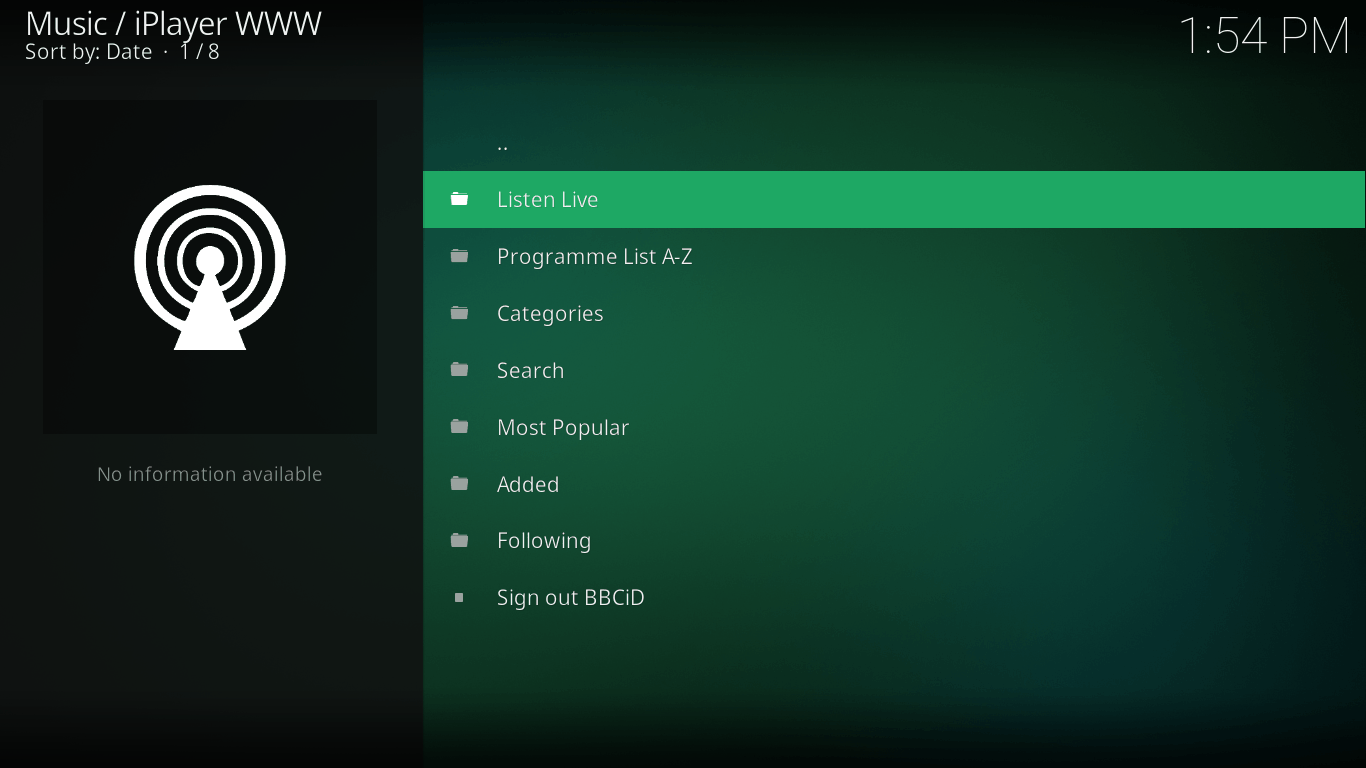
A Short Review – iPlayer WWW Add-on
The BBC is well recognized around the world for its high-quality content and has a multitude of channels operating under its name. It produces some of the best comedies, dramas, documentaries, soaps, and programs for its audiences, and also there are NO commercials to ruin your viewing experience.
With the iPlayer WWW add-on, you can easily access all of BBC’s live streaming and on-demand content on Kodi. It works well most of the time, and you will always find the content to be of the best possible quality. Since the content is pulled from the BBC iPlayer website, you won’t encounter any buffering issues or broken streams.
Moreover, with the content so neatly organized, you will be able to find any BBC TV show, movie, program, or documentary you are looking for with complete ease. There’s a small catch, however: You will need a valid BBC TV license to be able to use the iPlayer WWW add-on, and view both its paid and free content.
Once you meet this criterion, you will have a vast library of on-demand content for viewing. The BBC also broadcasts a wide array of media on iPlayer, which remains available for varying lengths of time, including:
1. Reality Shows
2. Lifestyle
3. Movies
4. News and Current Affairs
5. Drama
6. Comedy
For all the IPTV fans out there, you will be happy to know that BBC’s channels can be live streamed for free with the iPlayer WWW add-on. Since it’s an official Kodi add-on, you will find the user experience and content quality to be excellent, with top-quality streams, detailed descriptions for each show/episode, as well as self-explanatory menus.
Final Word
And with that, we have finally reached the end of this guide. Simply follow the guidelines mentioned above to the letter, and rest assured that you will be able to access and watch BBC iPlayer on your Kodi-enabled device, regardless of your location.
If you face any issues or want to send us your valuable feedback, feel free to use the comments section below and we will be more than happy to get back to you!

PureVPN

June 20, 2023

3 years ago


That’s all very well, but how does one obtain a BBC viewing licence if they don’t live in UK?
You just to connect to UK server through PureVPN.